Cash sessions
Day closing tracks cash-drawer accountability across a shift. Open a session with a starting float, take orders as normal, then close by physically counting the drawer. The app calculates the expected cash and shows the over/short difference.
Enable day closing
Go to Settings → scroll to Enable day closing and turn the toggle on.
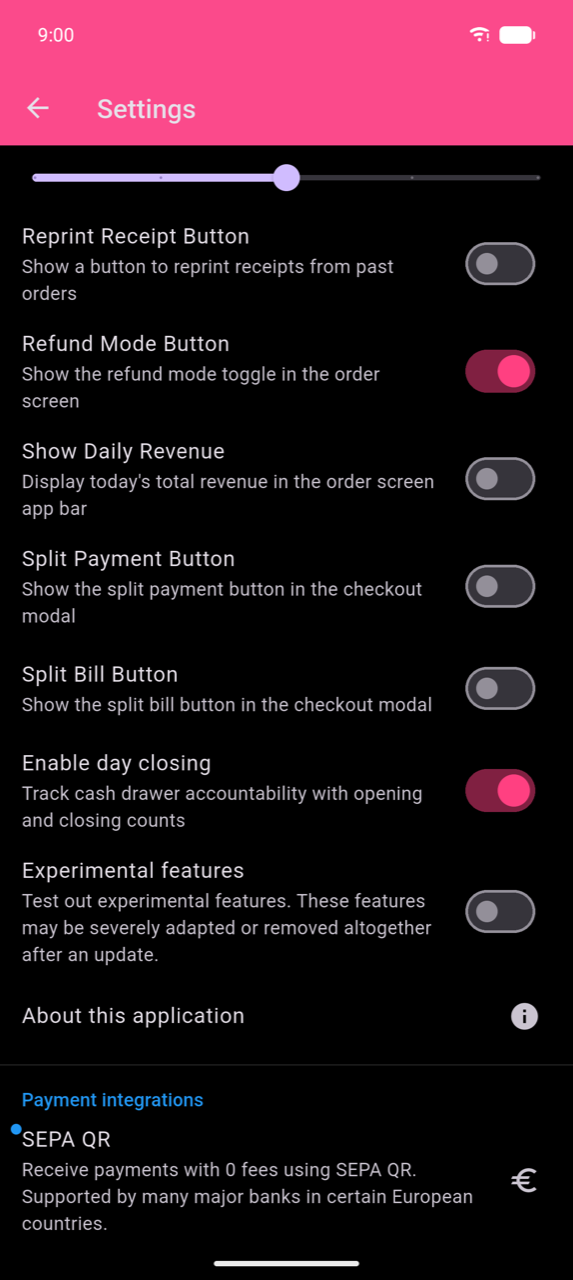
Once enabled, a Day closing tile appears on the home menu (→ session history), and the Open cash session dialog appears automatically the next time you open Take order.
Opening a session
The "Open cash session" dialog appears automatically when you enter Take order and no session is active. It cannot be dismissed — enter the float and tap Start session to proceed.
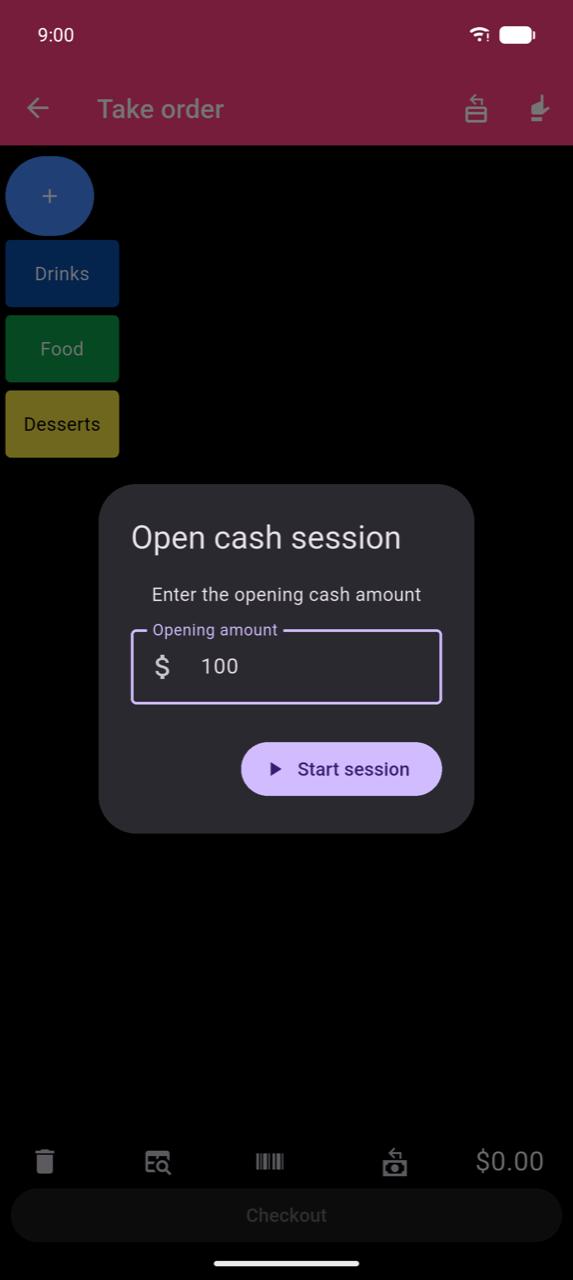
Enter the cash already in the drawer (your opening float) in Opening amount, then tap Start session.
Taking orders during a session
Orders are attributed to the active session automatically by their timestamp — there is no per-order linking step. Take orders as you normally would.
A cash-lock icon appears in the Take order app bar while a session is open. Tap it when you are ready to close.
Closing a session
Tap the cash-lock icon in the Take order app bar.
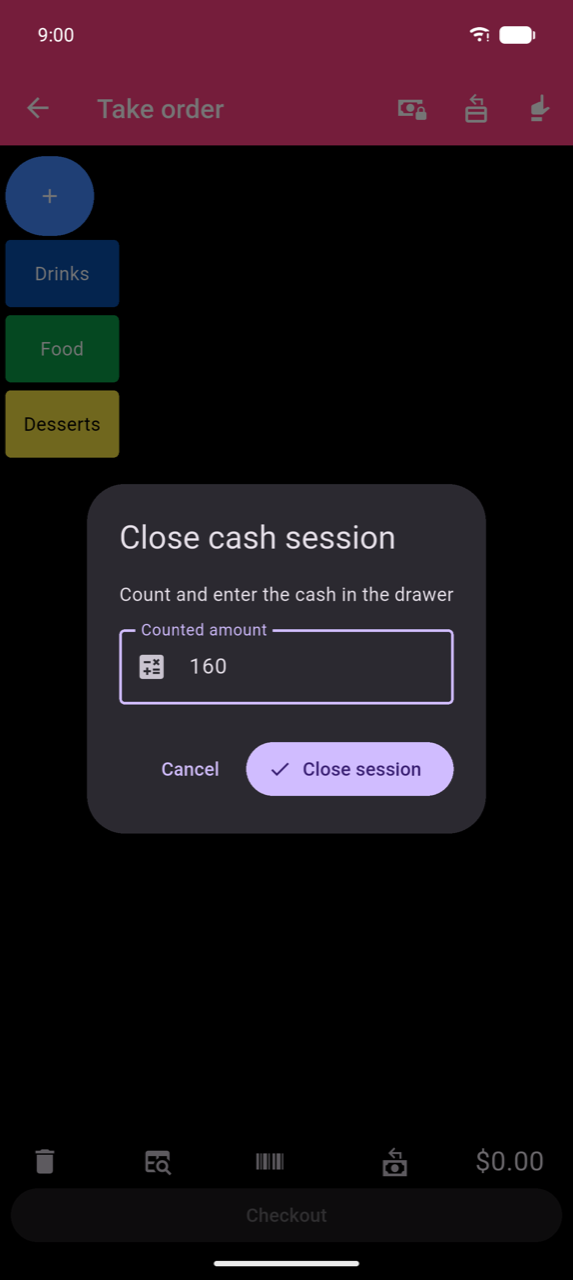
Count the physical cash in the drawer, enter the total in Counted amount, and tap Close session. The session summary opens immediately.
Reading the session summary
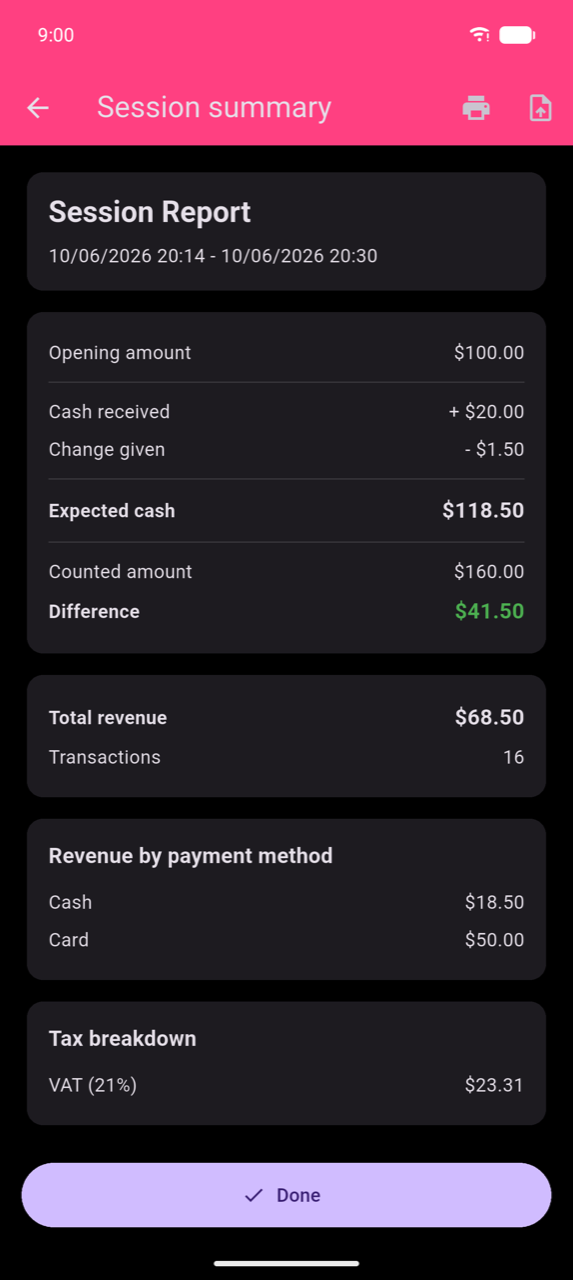
The summary has three sections:
Cash calculation
| Field | Meaning |
|---|---|
| Opening amount | The float entered at session start |
| Cash received | Cash tendered by customers (via the amount-entry flow) |
| Change given | Change returned on overpaid cash orders |
| Expected cash | Opening + Cash received − Change given |
| Counted amount | What you physically counted in the drawer |
| Difference | Counted − Expected (green = over, red = short) |
Revenue overview — total revenue and transaction count for the session.
Revenue by payment method — revenue split per payment method.
Tax breakdown — tax collected per configured tax rate.
Tap Print report (printer icon) to print the summary, or Export (document icon) to export the session range to a file. Tap Done to close the summary and return to the home menu.
Note
Cash received and the cash line in Revenue by payment method only include cash orders that were completed through the amount-entry (change- calculator) flow. If a cash order is completed with a single tap — without entering the tendered amount — it is not counted in the cash-received figure. To keep your cash tracking accurate, complete all cash payments via the amount-entry flow in the checkout screen.
Session history
Tap Day closing on the home menu to open session history.
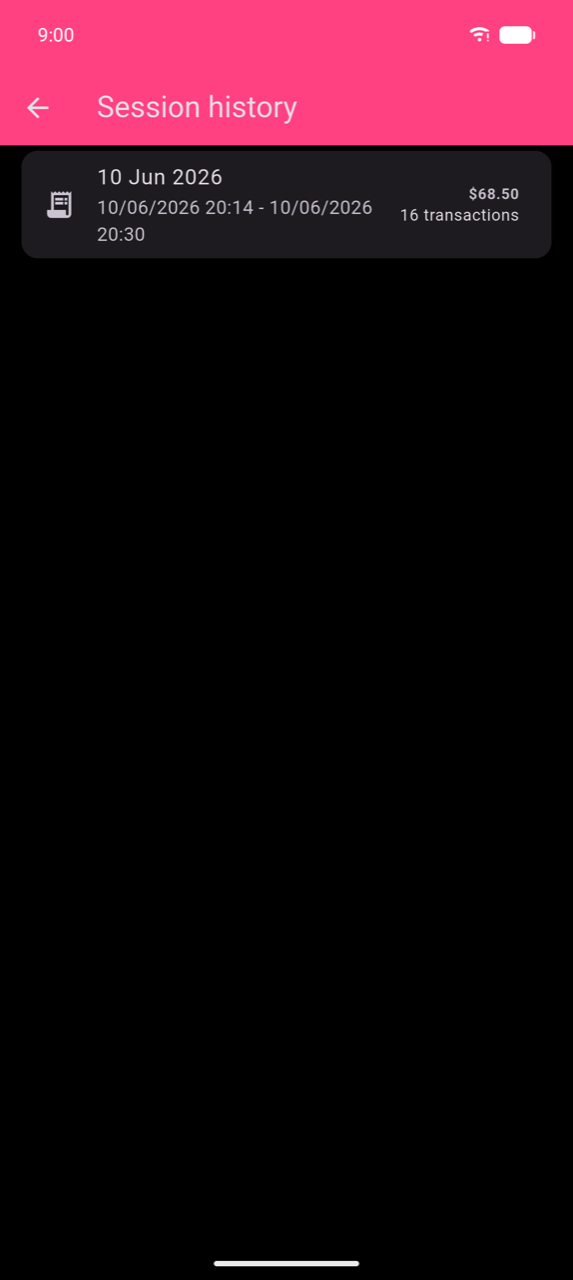
Each card shows the session date, start and end time, total revenue, and transaction count. Tap a card to re-open its summary.