Products & categories
To set up your product grid, tap Edit buttons from the home menu.
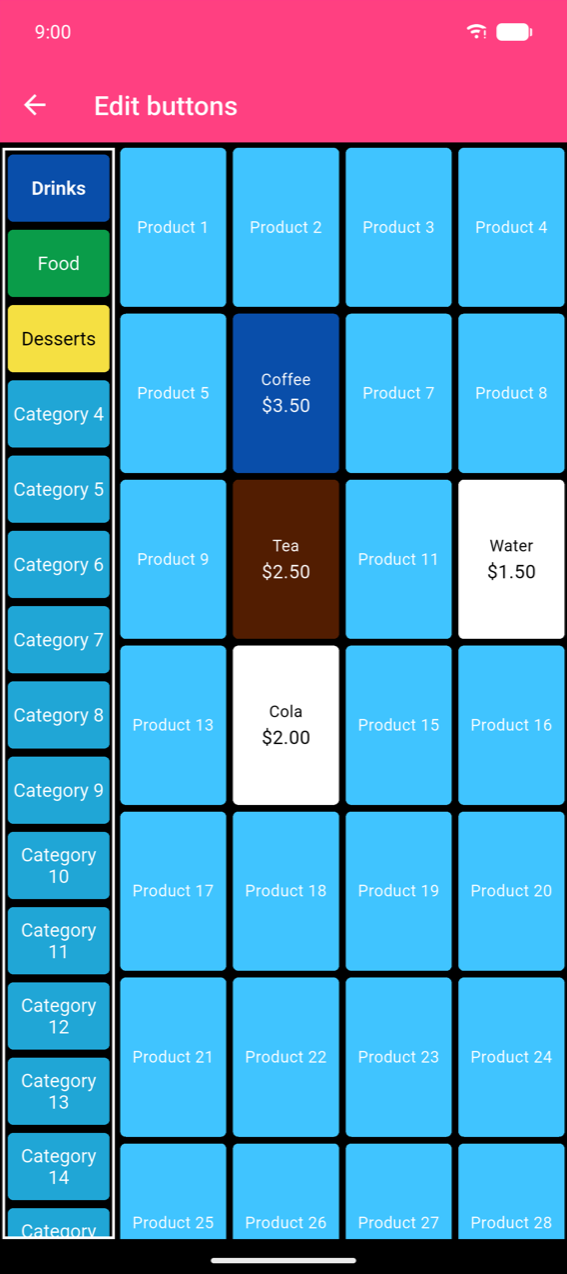
The Edit Buttons grid
The grid shows a column of category buttons on the left and a scrollable grid of product slots for the selected category on the right. Empty slots are labelled "Product N" and the grid expands automatically as you fill it — there is no separate "add slot" button.
- To create or edit a product: tap its slot (any empty slot creates a new product).
- To create or edit a category: long-press its button. Tapping a category only selects it.
- To reorder products: drag a product button to a new position.
Note
The category column always shows 40 slots, named "Category N" until you rename them. There is no delete-category action — rename and recolor unused slots instead.
Categories
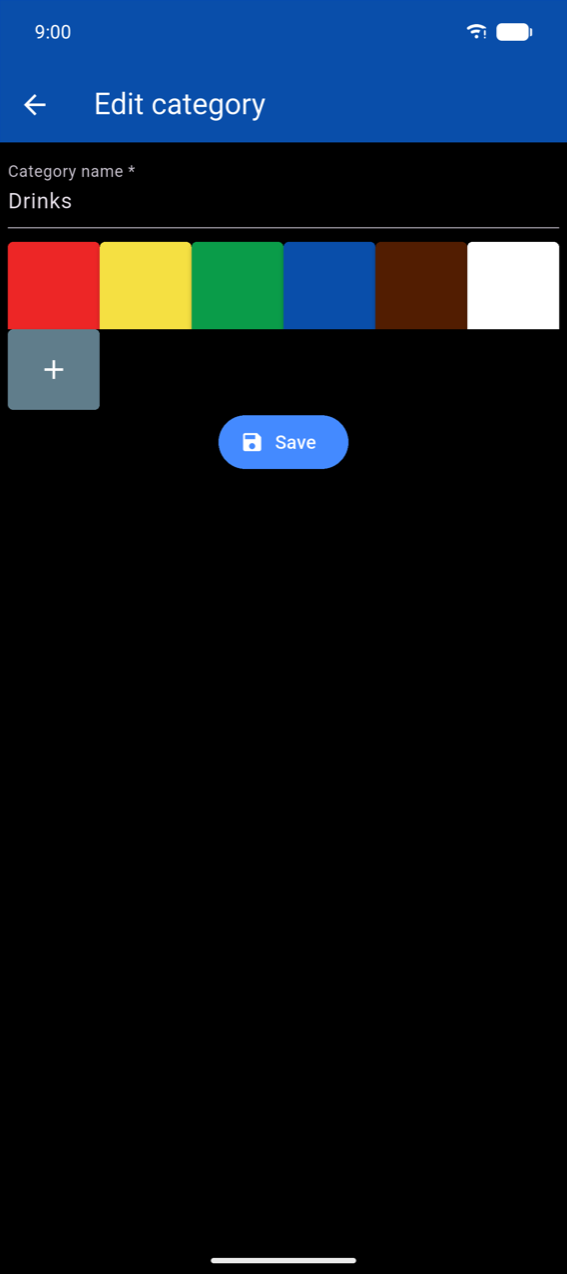
Long-pressing a category opens Edit category. Enter a Category name * and pick a color from the preset swatches. Tap + to define a custom color. Tap Save.
Products
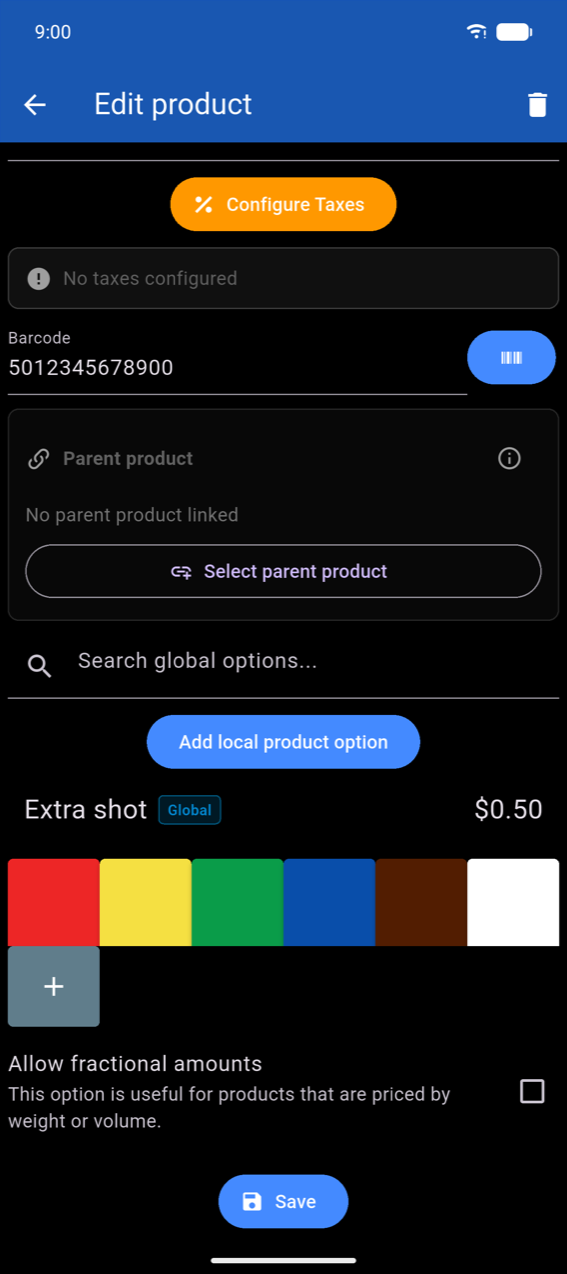
Tapping a slot opens Edit product. The app bar color reflects the product's current color; the trash icon in the top-right deletes the product.
Required fields (Product name * and Price *) are marked with an asterisk. Fill in Purchasing price if you want cost and profit figures to appear in Statistics.
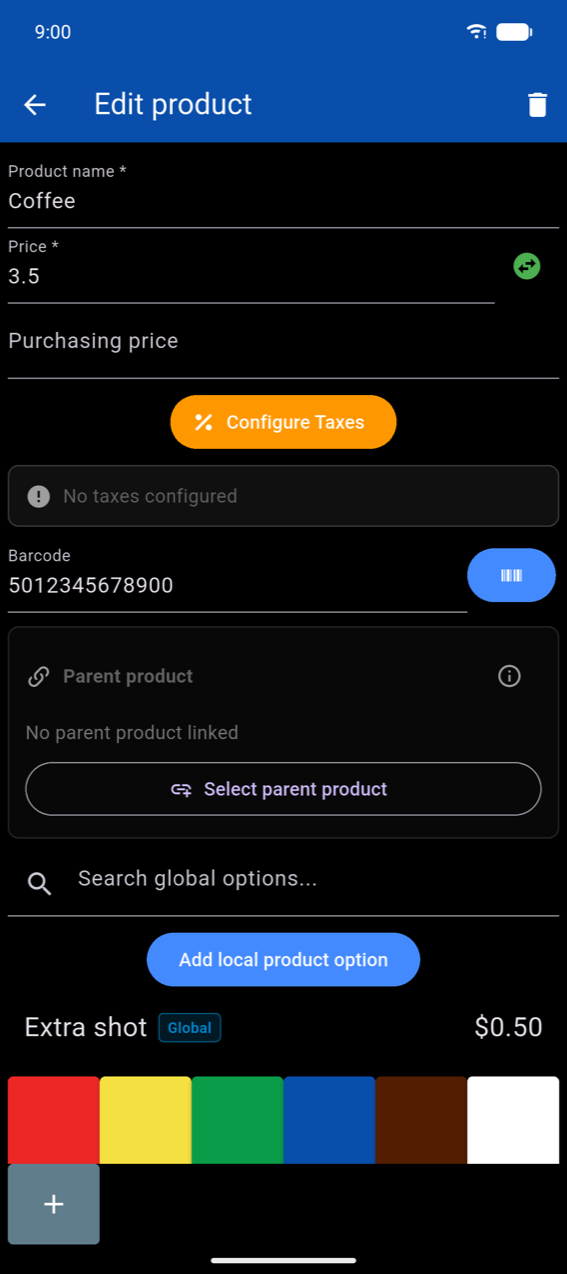
Scroll down to see the color picker, Allow fractional amounts, and Save.
Note
Taxes are not configured in this form. Tap Configure Taxes to open Bulk Tax Assignment, or manage tax rates in Settings → Tax Configuration. See Settings.
Fractional and negative pricing
Enable Allow fractional amounts for products sold by weight or volume (deli items, bulk goods). The quantity entry becomes a decimal field in Take order.
The Price field has a sign-toggle button (). Flip the sign to negative for discount or deposit-refund buttons.
Barcode
Type a value directly into the Barcode field, or tap the scan icon to open the camera and scan the product's physical barcode — the scanned value fills the field automatically.
Product options
Local options belong to one product only. Tap Add local product option to open the dialog: enter a Name and Price * (use the sign toggle for negative surcharges), then tap Save. Swipe an existing option row to edit or delete it.
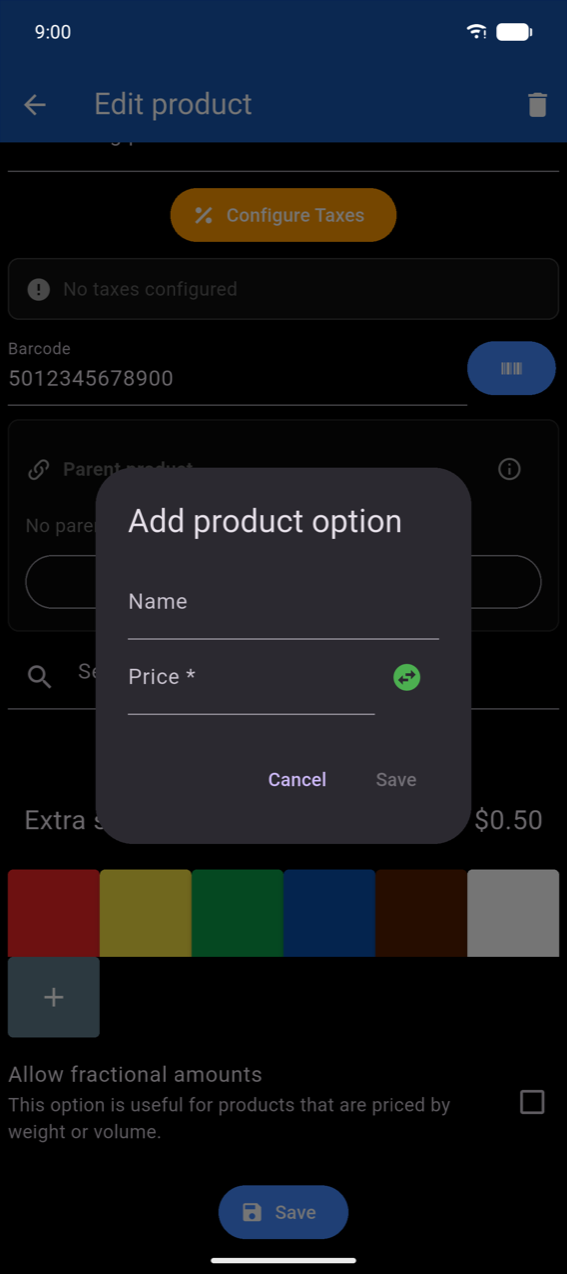
Global options are reusable across many products — see Global Product Options below. Type in Search global options... and tap + on a result to attach it. Attached globals show a blue Global badge; their name is read-only per product (only the price surcharge can be overridden).
Parent product
The Parent product section links a product variant to a parent for unified stock tracking (for example, "Bottle of Cola" linked to "Crate of Cola" with Units per parent set to 24). Tap Select parent product to choose, then set the unit count. Tap the info icon () for a full explanation.
Global Product Options
Global options are created and managed at Settings → Global Product Options. Each option can be attached to many products and kept in sync: editing the option's price propagates to all assigned products (with a prompt to keep or override per-product custom prices).
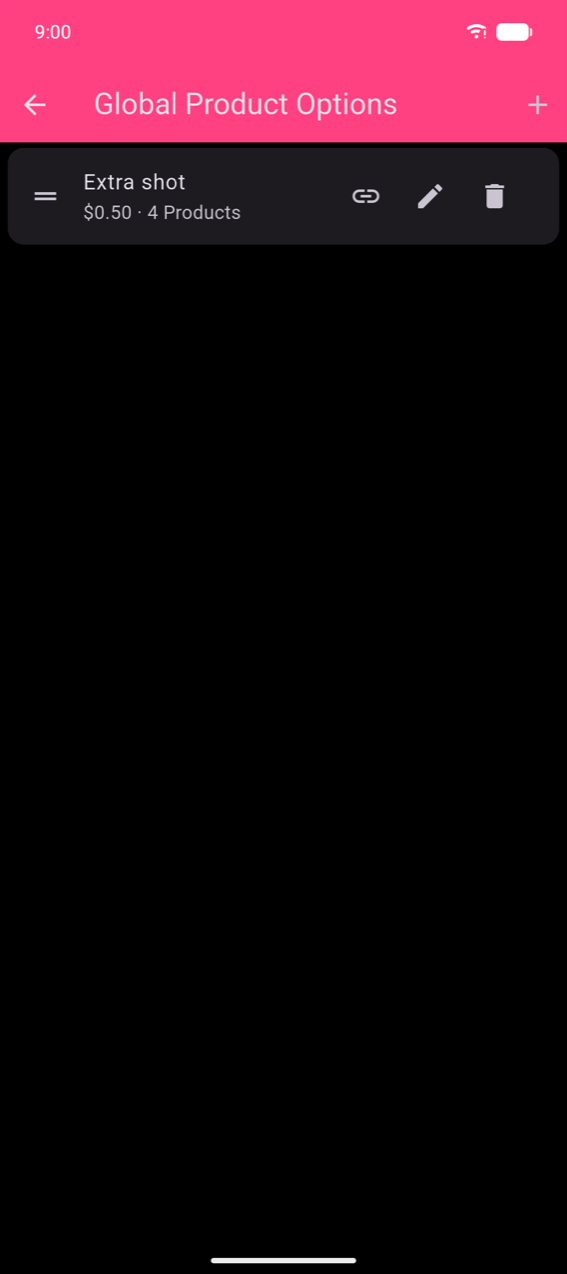
Tap + to add an option. Each card shows three actions:
| Icon | Action |
|---|---|
| Chain link | Assign to products in bulk |
| Pencil | Edit name / price |
| Trash | Delete (removes option from all assigned products) |
Assigning a global option to products
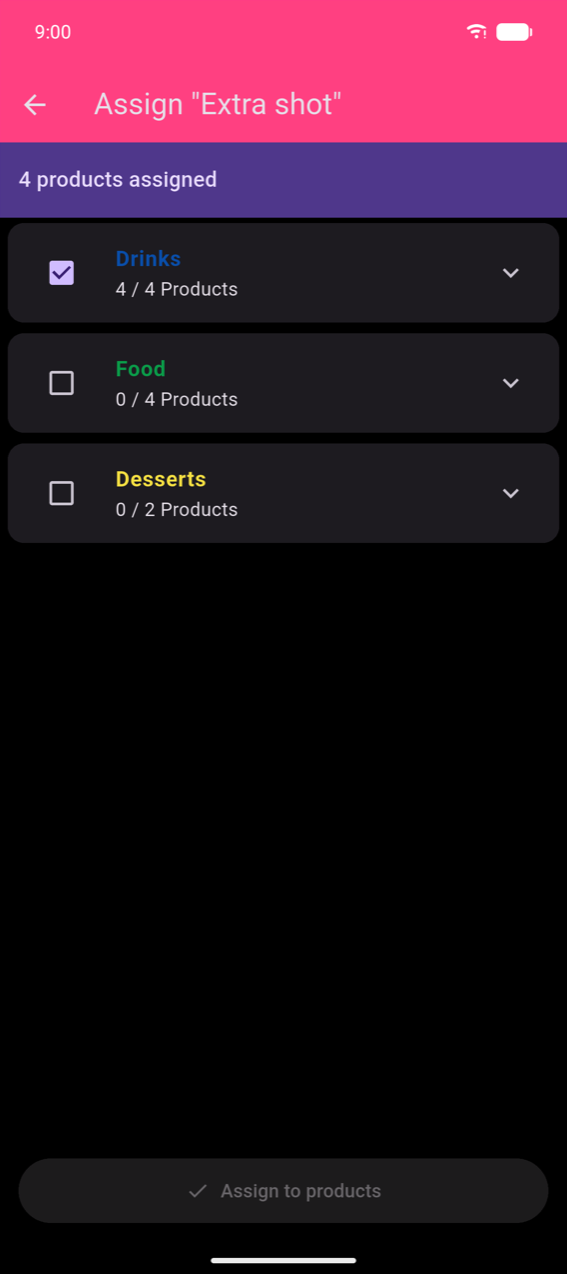
Tap the chain-link icon to open the assignment screen. Categories are listed with a tristate checkbox — check a category to assign the option to all products in it, or expand the category to assign individual products. The banner at the top shows the current assignment count.
Tap Assign to products to apply.