Printing & receipts
POS Cash Register prints to ESC/POS thermal receipt printers — the universal receipt-printer standard. There is no certified-model list; any 58 mm or 80 mm ESC/POS thermal printer should work. Test with a short print before going live.
Printing is not available in the web browser build.
Connection types
Three connection types are available; platform support varies:
| Wi-Fi | Bluetooth | USB | |
|---|---|---|---|
| Android | ✅ | ✅ | ✅ (USB-OTG) |
| iOS | ✅ | ✅ | — |
Setting up your printer
Open Settings (gear icon in the home app bar) and scroll to the Receipt section.
-
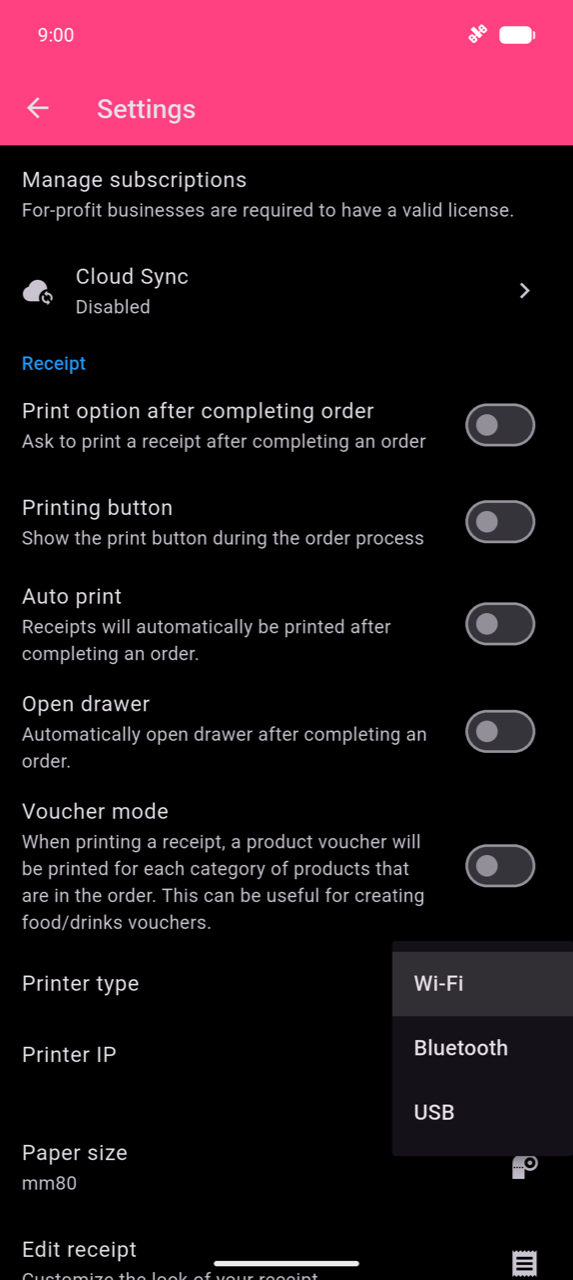
Tap Printer type and select Wi-Fi, Bluetooth, or USB. Only the options supported on your platform appear.
-
Configure the connection for your chosen type:
Wi-Fi — tap Printer IP. The app scans your local subnet on port 9100 and lists responding printers in a "Printers on network" dialog. Select your printer and tap OK.
Note
The device and printer must be on the same Wi-Fi network. Port 9100 (raw/JetDirect) must be reachable on the printer.
Bluetooth — tap Printer bluetooth address. The app lists your already-paired Bluetooth devices in a "Bluetooth printers" dialog. Select your printer and tap OK.
Warning
The app only lists printers that are already paired in the phone's system Bluetooth settings — it does not pair for you. Pair the printer in your phone's Bluetooth settings first, then return here.
USB — tap USB Printer. The app discovers connected USB devices and lists them in a "USB Printers" dialog. Select your printer and tap OK. On Android, USB-OTG is required.
-
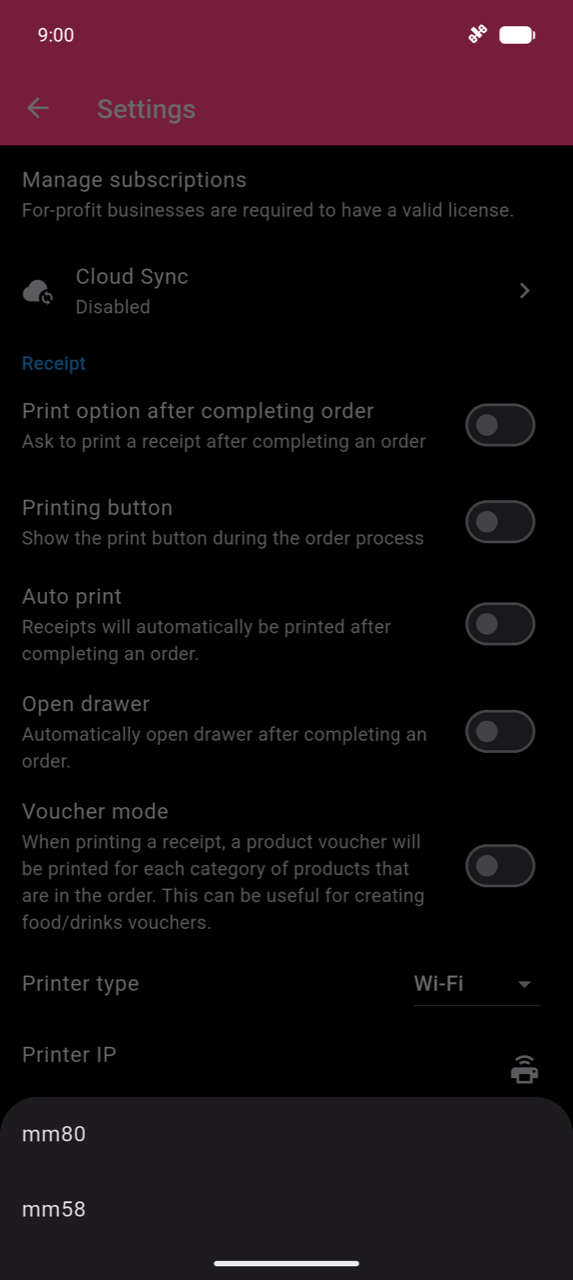
Tap Paper size and choose mm80 or mm58 to match your printer roll.
-
Tap Edit receipt to customise receipt content — see Receipt extras below.
-
If you have a cash drawer connected to the printer's RJ11 port, enable Open drawer in the same Receipt section. The app sends a cash-drawer kick signal at the end of every receipt.
Troubleshooting
If a print job appears to hang: each job retries automatically up to 6 times before reporting "Printing failed!". Wait for all retries to finish before triggering another print — re-sending while retries are running can cause duplicate prints.
If the receipt output looks wrong (garbled text, misaligned columns, or a logo that does not print), try the compatibility options in Settings → Edit receipt:
| Setting | When to use |
|---|---|
| Image print compatibility mode | Logo prints incorrectly — switches logo rendering to raster graphics |
| Receipt layout compatibility mode | Text is misaligned or columns are garbled — renders every row as an image; slower, but fixes stubborn printers |
| Custom print width | Fine-tune the pixel width used for image rendering (296–600 px; Auto = 448 px) |
Non-Latin scripts (CJK, Thai, Arabic, Devanagari, etc.) work without any manual setup. If a character cannot be rendered natively, the app automatically redraws that row as an image.
Receipt extras
Configure in Settings → Edit receipt. The Preview tab shows a rendered sample of how your receipt will print.
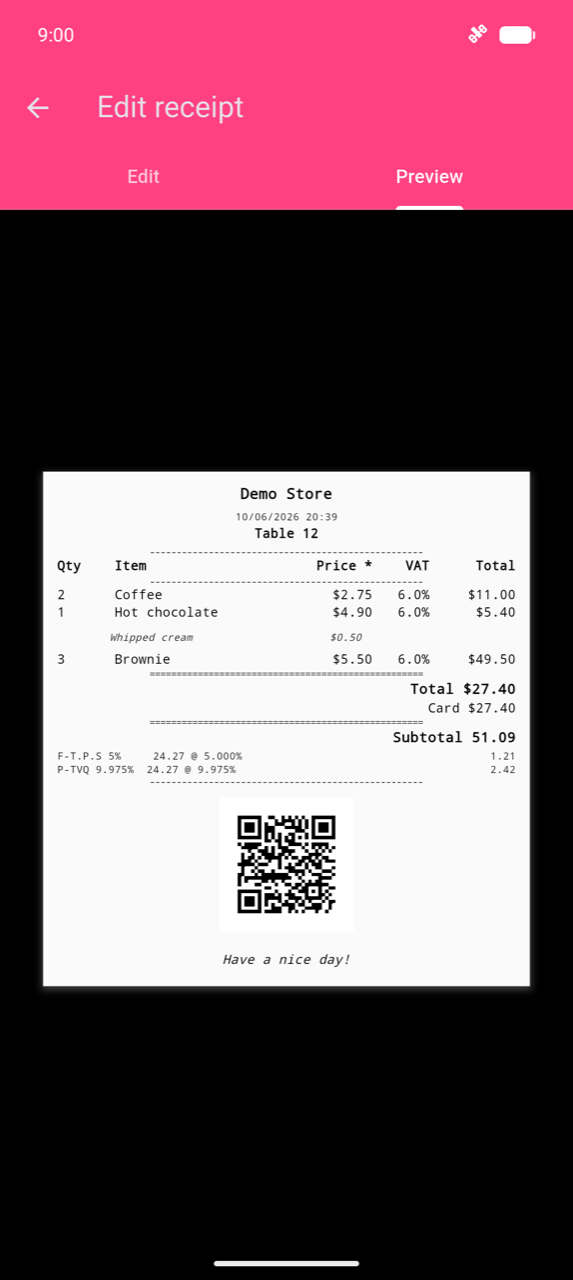
- Logo — tap Choose logo and select a
.pngfile. JPG and other formats are not supported. The app auto-scales the image to the paper width. - Show QR Code on Receipt — prints a QR code encoding the order ID at the bottom of the receipt, useful for looking up the order later.
Reprinted receipts are automatically marked " COPY " to distinguish them from originals.
Print triggers
The print button in the checkout screen is hidden by default. Enable it and other print triggers in Settings → Receipt:
| Setting | Behaviour |
|---|---|
| Auto print | Prints automatically when an order is completed |
| Print option after completing order | Shows a print prompt after checkout |
| Printing button | Adds a manual print button inside the checkout screen |
Voucher and kitchen ticket printing (Voucher mode) prints as a second document alongside the receipt — see Payments.