Order history
Tap Order history on the home menu to open the completed-orders list. The screen has two tabs: Orders (this chapter) and Stats (see Statistics).
Browsing the order list
The top of the Orders tab shows four filter chips — All, Cash, Card, and Other — to narrow the list to a specific payment method.
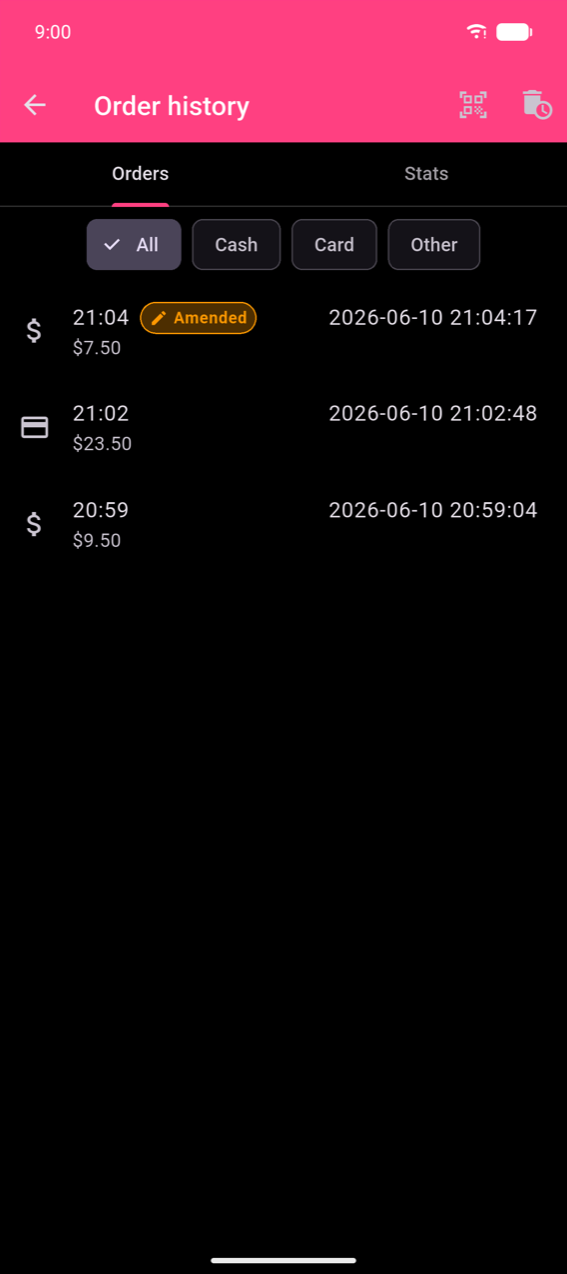
Each row shows the payment-method icon, order time, and total. Two badges can appear:
- Amended (orange) — the order has been corrected after the fact; tap the row to read the full amendment history.
- Refund (red) — the order was recorded as a refund; the detail screen shows a large Refund label.
The QR-scan icon in the app bar lets you scan a receipt's QR code to jump directly to that order.
Order details
Tap any row to open the order details screen.
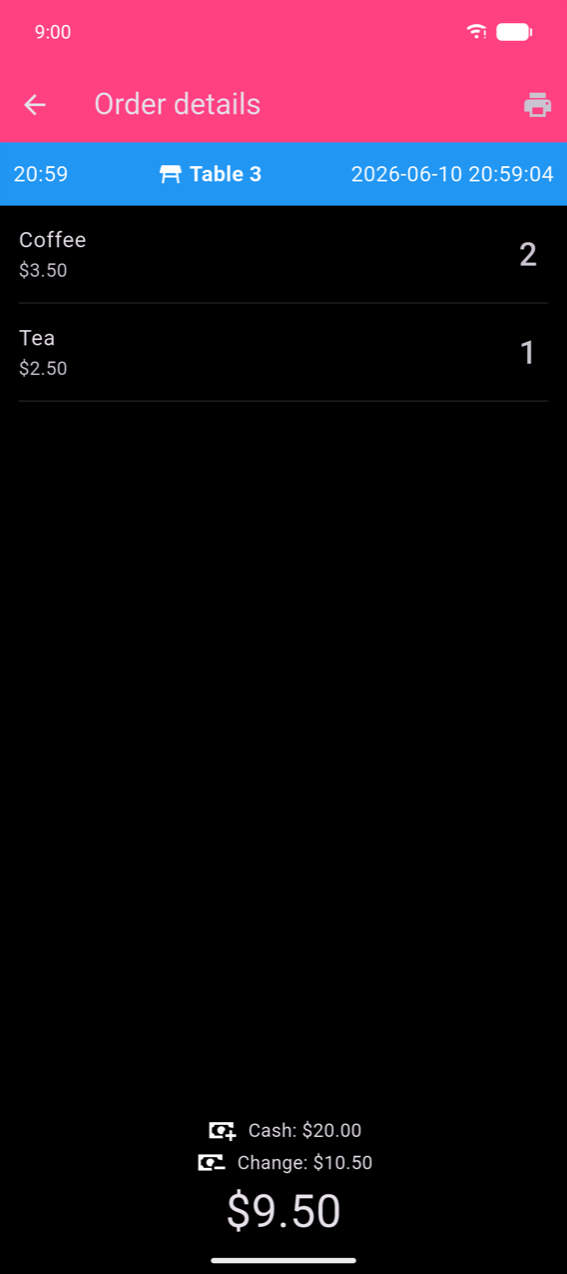
The header shows the order time, table (if assigned), and full timestamp. Below it, each product line shows its name, unit price, and quantity. The payment area at the bottom adapts to how the order was paid:
- Cash with change calculator — shows the amount tendered and change given.
- Single method — shows one payment method row.
- Split payment or split bill — shows a Payment Breakdown with one row per method or per guest.
The app-bar printer icon reprints the receipt (marked *** COPY ***).
Note
The Tax Breakdown section (one line per tax rate, then a Total Taxes row) only appears when the products in the order have taxes configured. It is absent from the screenshots in this chapter because the demo device had no taxes assigned to its products. See Settings for how to configure and assign taxes.
Amending an order
You can correct a completed order within 3 hours of placing it. After 3 hours the Amend action disappears and the order becomes read-only.
Opening the amendment editor
Swipe a row left in the order list to reveal two actions.
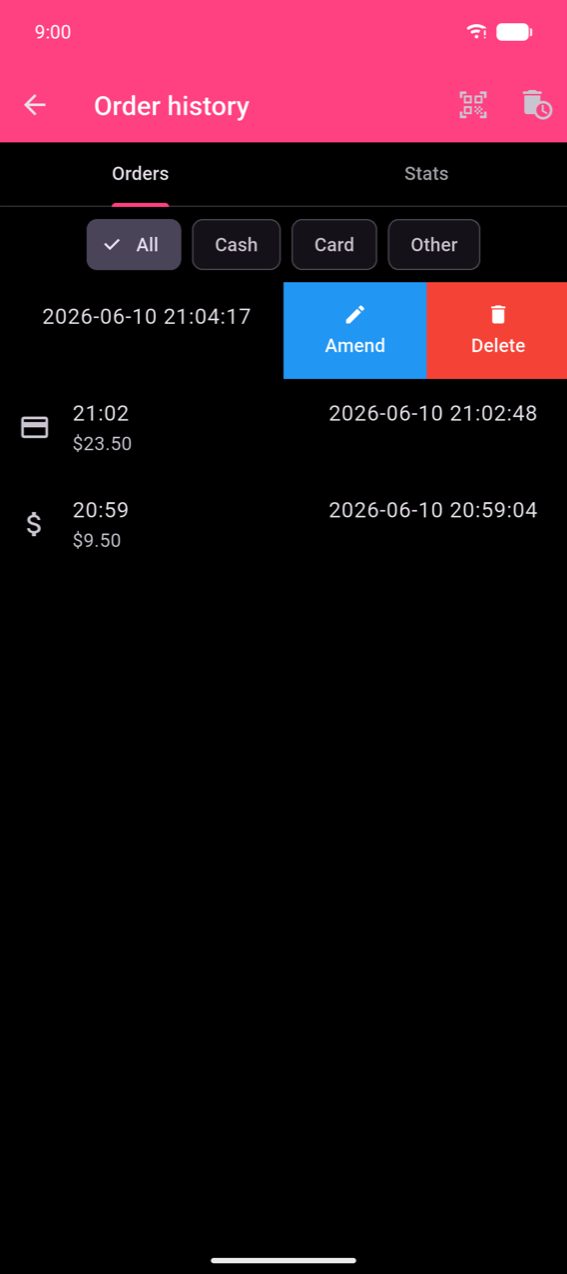
Tap Amend to open the Amend Order screen.
Making changes
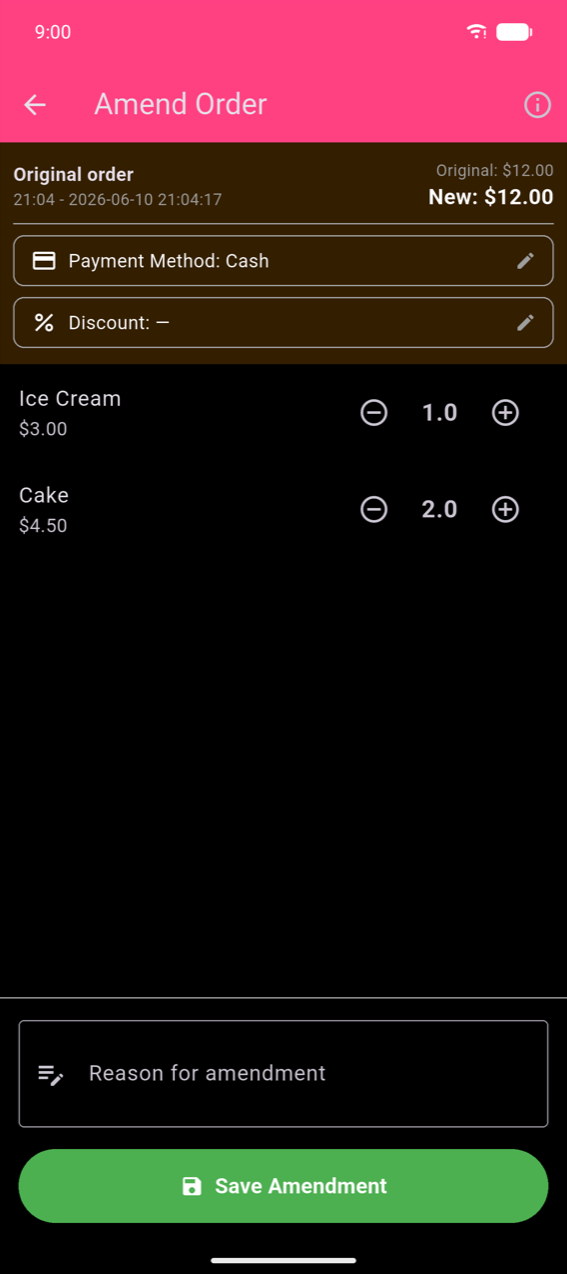
The header shows the original total alongside the running New total (turns orange when it differs). You can:
- Change the payment method — tap the Payment Method row and select a new method from the dialog.
- Adjust quantities — tap + or − on each product; reducing a product to 0 removes it from the order.
- Change the discount — tap the Discount row to apply or modify a discount.
A Reason for amendment is required before you can save. Enter a brief explanation (e.g. "Customer changed order", "Wrong item entered"). Tapping Save Amendment without a reason or without any changes shows a validation message.
Viewing the audit trail
After saving, the order detail screen shows an orange banner — "This order has been amended" — with a View History link.
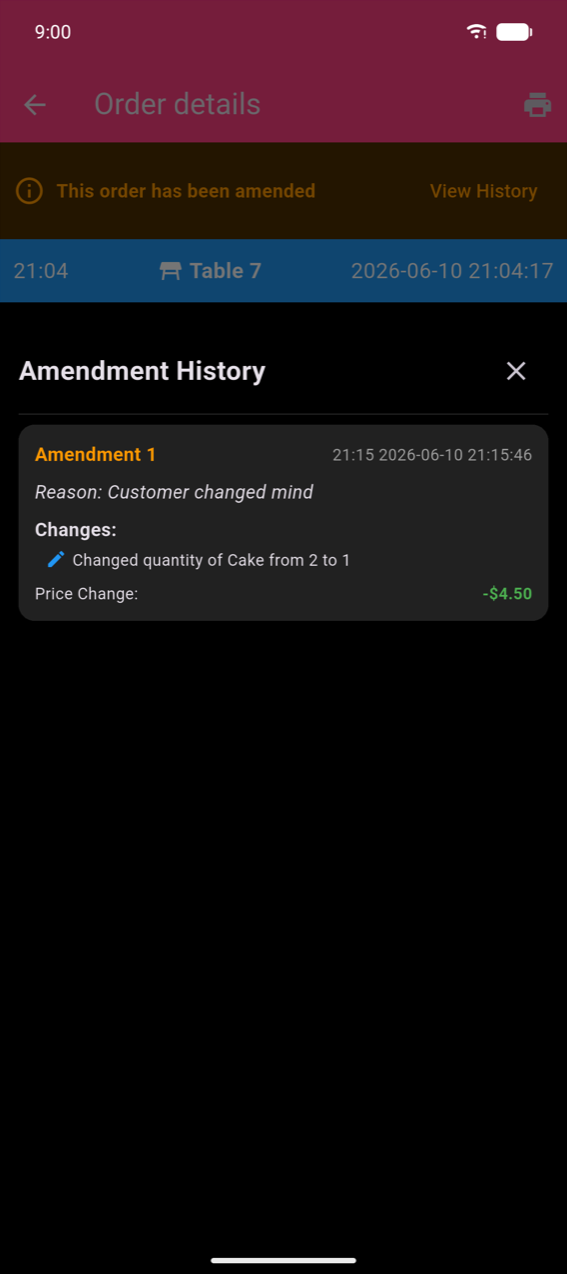
Tap View History to open the Amendment History sheet. Each amendment card shows its number, date/time, the reason you entered, a plain-English description of every change (e.g. "Changed quantity of Cake from 2 to 1"), and the resulting price change. The original order is never deleted.
Deleting an order
Swipe a row left and tap Delete to remove a single order. The deletion cannot be undone.
To delete the entire order history, tap the trash icon in the Order history app bar. The app automatically creates a backup before deleting and shows a 10-second countdown to give you a chance to cancel. A snackbar confirms when the backup is created, with a View action to open it in Backup Management.
Note
The delete actions are not available to non-admin members of a shared organisation.
Exporting orders
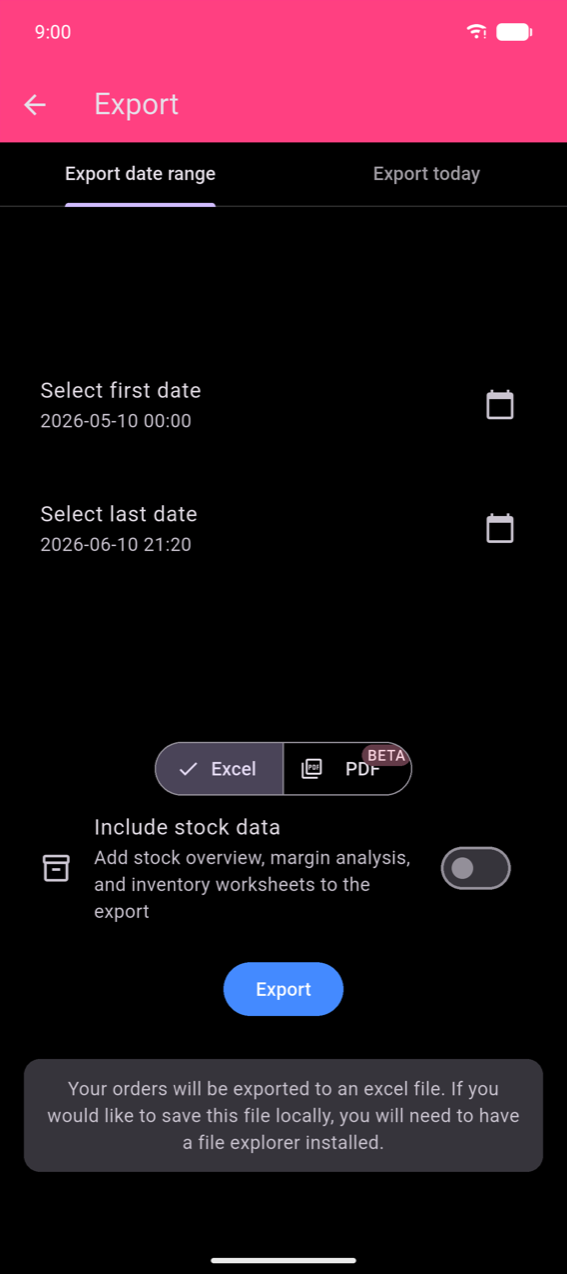
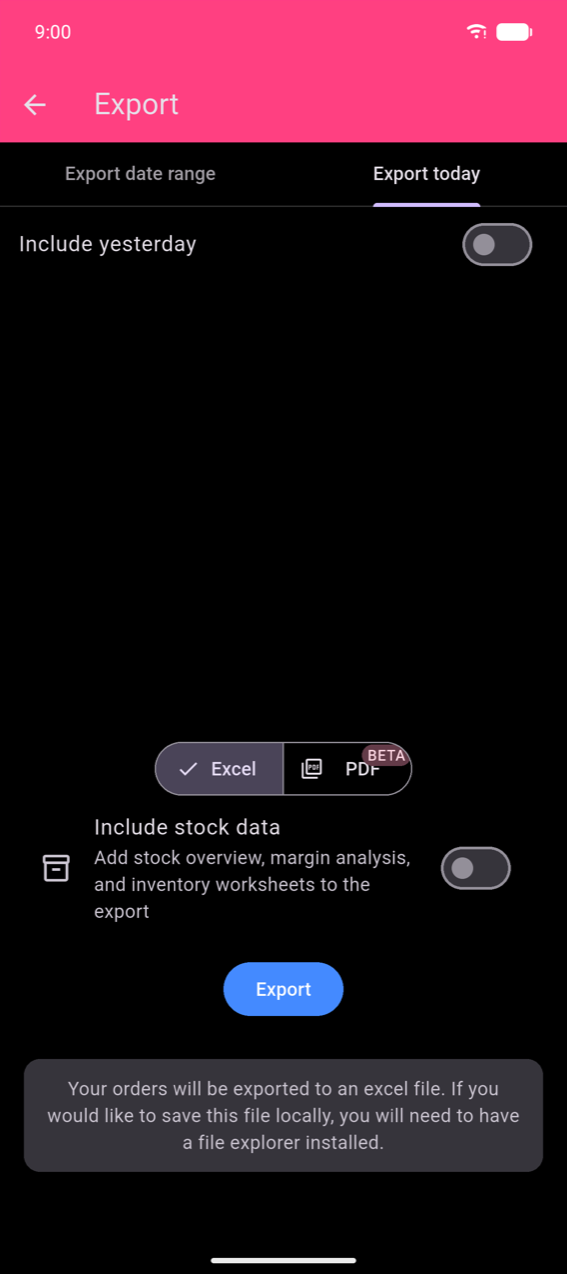
Order export is reached from the Export tile on the home menu (not from within Order history). The Export screen has two tabs:
- Export date range — choose a Select first date and Select last date; each tap opens a date picker followed by a time picker.
- Export today — exports today's orders; enable Include yesterday to extend the range back one day.
Output formats
Select Excel or PDF (preview) with the toggle above the Export button.
Excel produces a workbook with three sheets:
| Sheet | Contents |
|---|---|
| OrderHistory | One row per order — date, total, payment method, table |
| OrderDetails | One row per ordered product — links back to OrderHistory |
| TaxBreakdown | Tax collected per rate, per order |
Enable Include stock data to add stock-overview, margin-analysis, and inventory worksheets.
PDF generates a Sales Report with metric summary boxes (Total income, Costs, Profit, Orders) and Sales-per-Day and product-mix charts. PDF export is a preview feature (labelled BETA).
Note
On Android you need a file-manager app installed to save the exported file locally. Without one the OS share sheet still lets you send the file directly to another app (e-mail, cloud storage, etc.).
Tap Export to generate and share the file. If there are no orders in the selected range, a "Nothing in selected range." message is shown and no file is created.