Inventory
Tap Manage inventory on the home menu to open the inventory management screen.
Note
Current stock is calculated automatically: starting from your logged intake deliveries and recounts, the app subtracts everything sold through completed orders (amendments included). You never adjust stock after a sale — you only log deliveries and run an occasional recount to correct for breakage or loss. The app does not (yet) warn you at the till when a product is running low or sold out; check the Insights tab for current levels and estimated sell-out dates.
The screen has two tabs: History lists all recorded inventory orders; Insights shows stock levels and forecasts.
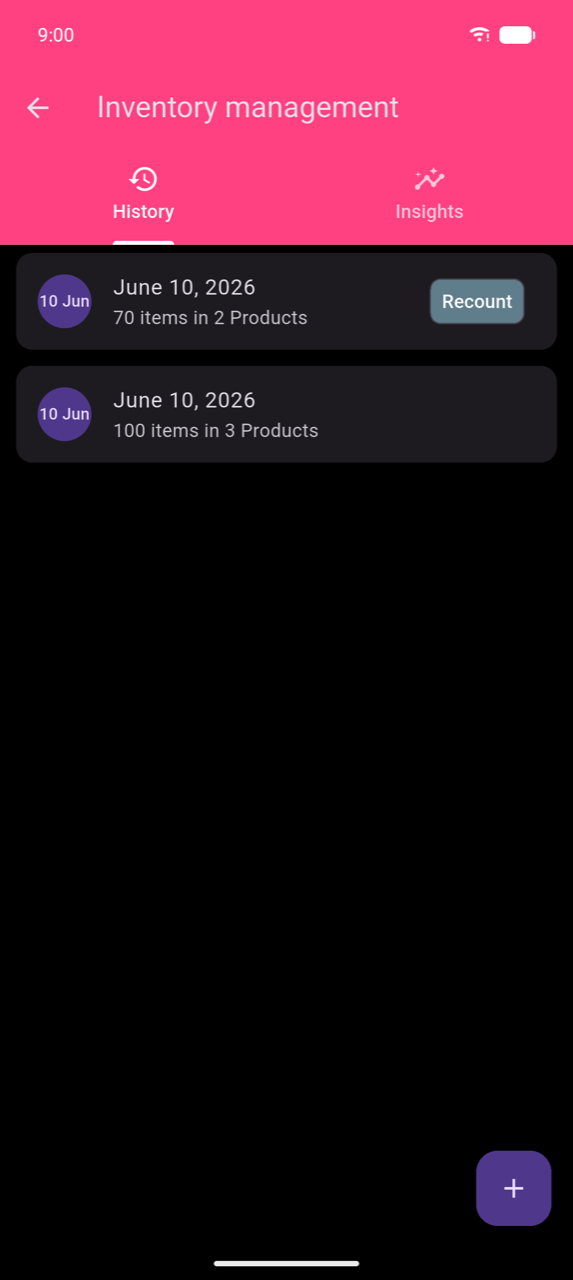
Recording a stock delivery
- Tap + to start a new inventory order.
- The screen opens on the Current Order tab — your order list starts empty here. Tap the Products tab to browse your product catalogue.
- Tap a product button to open the add dialog. Enter the Quantity received and the Purchase Price (per item) for this delivery, then tap Add.
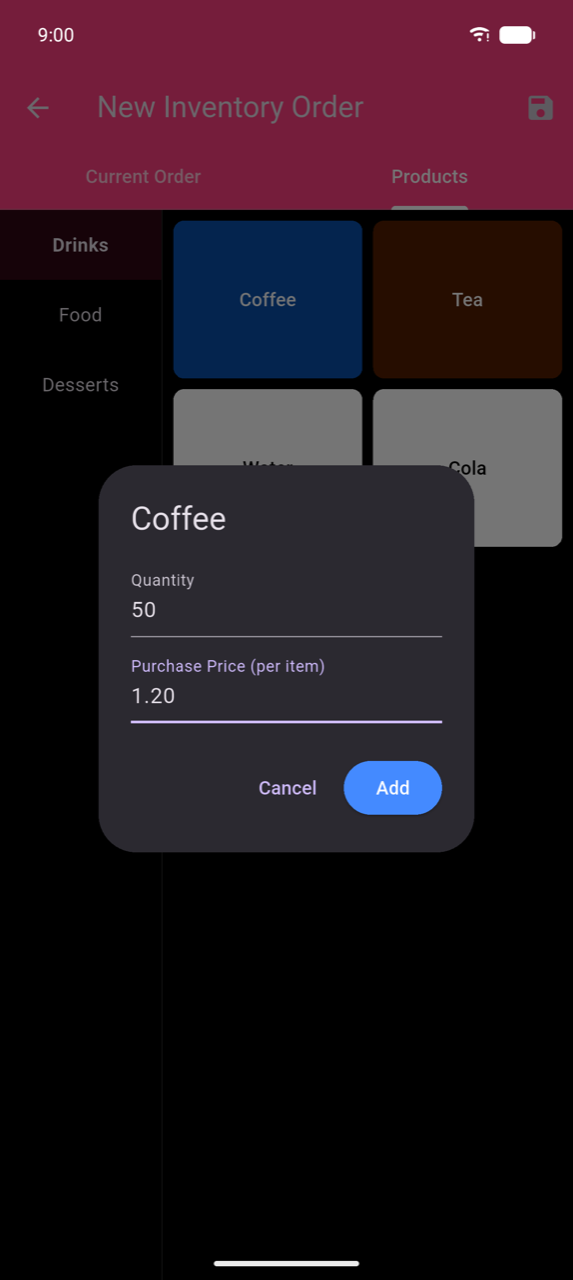
- Repeat for each product in the delivery. Switch back to the Current Order tab at any time to review what you have added — each line shows "Qty: {n} @ {price}" and can be removed with the trash icon.
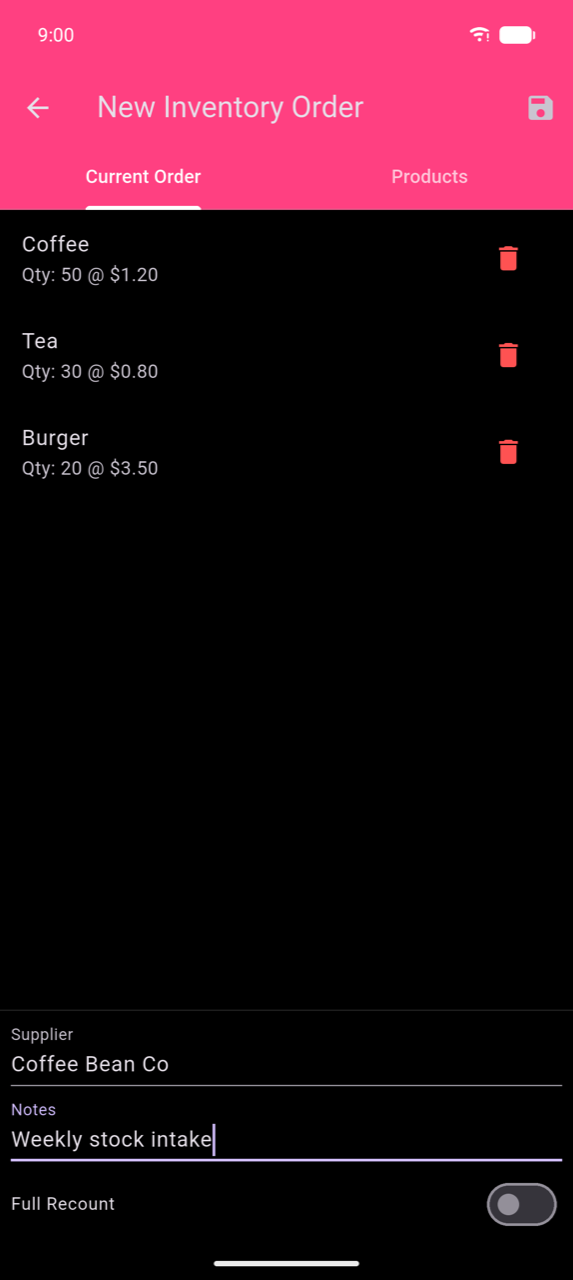
- Optionally fill in Supplier and Notes at the bottom of the Current Order tab.
- Tap the save icon (💾) in the app bar to save the order.
Note
The Purchase Price (per item) field is pre-filled from the product's purchasing price in Products & categories. Recording an accurate purchase price lets cost and profit figures appear in Statistics.
Full Recount
By default, each inventory order records an intake — the quantities are added on top of existing stock. Enable the Full Recount switch to record the order as a complete stock count instead: the quantities you enter become the absolute stock levels, replacing any previously recorded figures.
A full recount appears with a Recount chip in the History list so you can tell it apart from regular intake orders at a glance.
Editing a past order
Tap any row in the History tab to open its detail screen. The detail screen shows:
- General information — editable Supplier, Notes, and the Full Recount switch
- Products in order — each line shows the amount and purchase price; tap the trash icon to remove a product
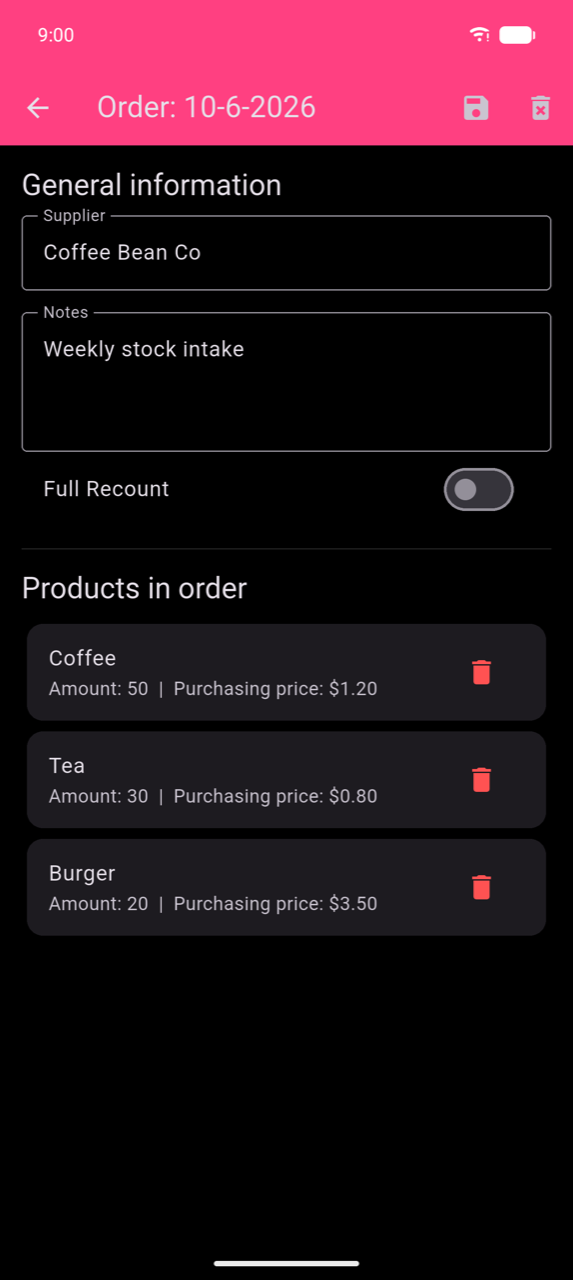
Tap the save icon to apply changes, or the delete icon (🗑) to remove the order entirely. Deletion cannot be undone.
Linking product variants to a parent for stock tracking
If you sell the same item in different quantities (e.g. individual cans linked to a crate), use the Parent product feature to track stock at the parent level. Set this up in Products & categories — search for "Parent product" in that chapter.
Insights
The Insights tab gives you a live picture of your stock position based on all recorded inventory orders.
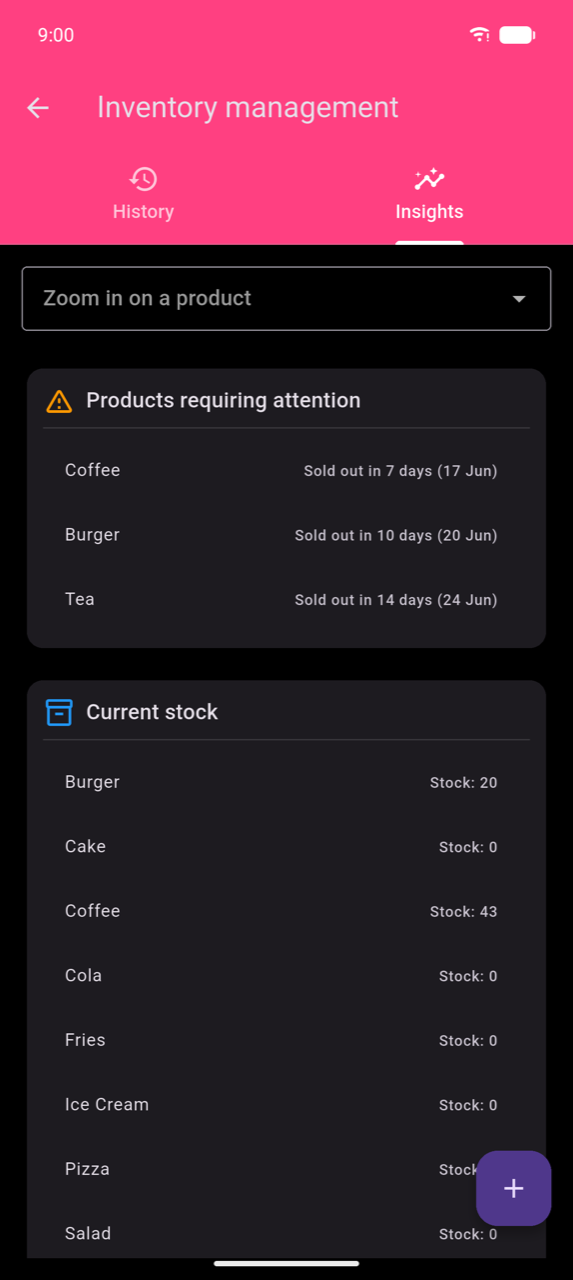
Products requiring attention lists items that are on track to sell out soon. Each entry shows the estimated sell-out date based on the product's current stock and recent sales pace — for example, "Sold out in 7 days (17 Jun)" means at the current sales rate that product will reach zero stock around that date. Use the list to decide which products to reorder first.
Current stock lists every product and its calculated stock level based on your intake orders and recounts.
Zoom in on a product — select a product from the dropdown to open its stock chart: a blue line for recorded history and an orange dashed line for the forecasted depletion rate.